My Staff.Care
Usage
The My Staff.Care area is a 'self service portal' that provides a single location for staff members to find and view details of all elements associated to them and the schedule
Service
The Service page displays a list of all activity, shift & leaves, for the currently logged on staff member.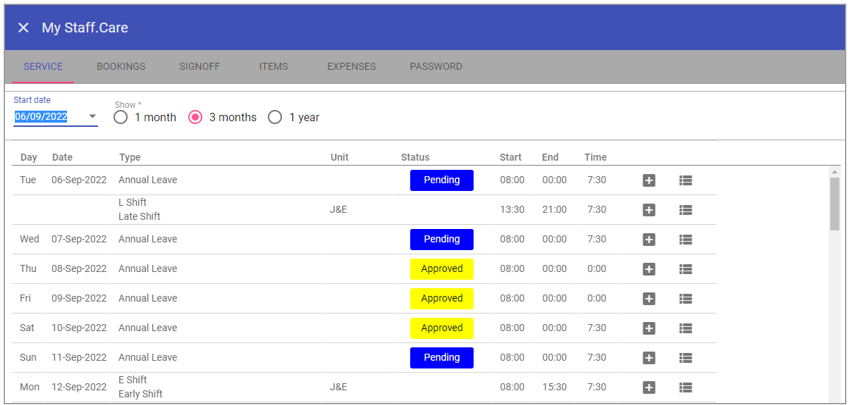 Start date: select the start date for the period to be viewed.
 Show
1 month: Allows a one month period to be viewed on screen.
3 months: Allows a three month period to be viewed on screen.
1 year: Allows a one year period to be viewed on screen.
View Rota: When clicked will take the staff member to the Details screen within Units, Unit Schedules- should your internal security permissions allow.
Request: When clicked, allows the staff member to book a Leave requirement, a shift requirement or Bank staff to select their Availability to work (subject to permissions). The types of requests are listed below. To create a new request, click New, complete the relevant fields and click Save.
Leave request
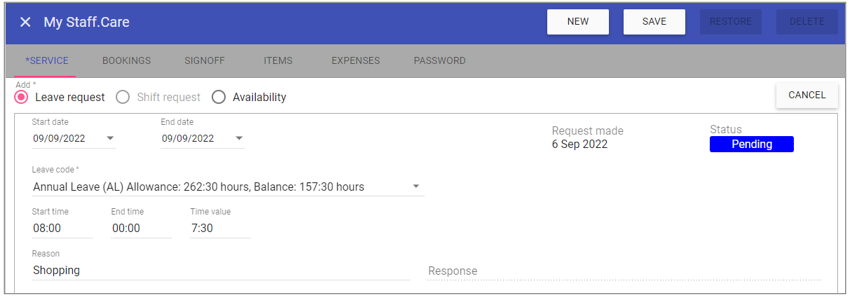 Start date: Enter the start date required for the request.
 End date: Enter the end date required for the request.
Leave code: The code of the leave being requested.
Start time: The start time of the request.
End time: The end time of the request.
Time value: The time value of the request.
As bank: Request to work as bank.
Affects pay: Specifies if the Leave code is designated as affecting a staff member pay - Specific to ESR interface.
Work related: Specific to ESR interface.
3rd party: Specific to ESR interface.
Reason: Enter free form text to give a reason for the request.
Response: Displays a text response when a leave request has been allowed/disallowed by an authorised user usually a manager.
Request made: The date the request was made.
Status: Displays the status of the leave request.
Shift request
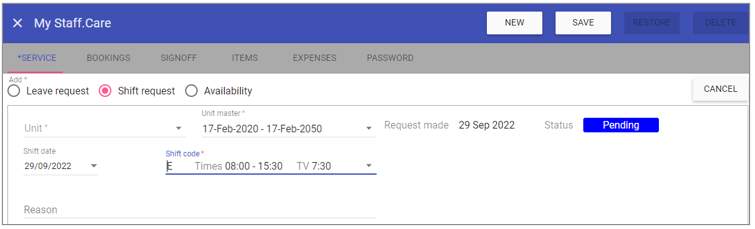 Unit: The unit requested to be worked on.
 Unit master: The associated contract of the unit.
Shift date: The date of the shift being requested.
Shift code: The code of the shift being requested.
Reason: Enter free form text to give a reason for the request.
Request made: The date the request was made.
Status: Displays the status of the leave request.
Availability
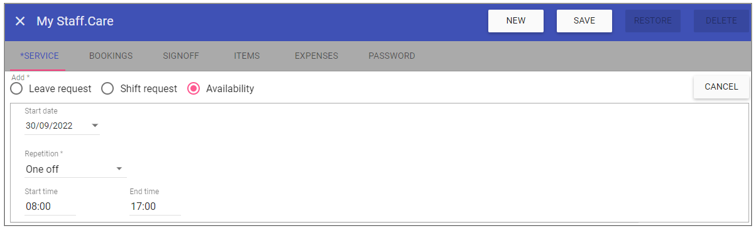 Start date: Available from date.
 End date: Available to date.
Repetition: Choose between, one off, specific date, weekly up to 10 weekly. E.g. available on Monday every week.
Start time: The start time available to work.
End time: The end time available to work.
Jobs
You must be using iPlanner and iCare modules for this functionality.
Jobs lists all iPlanner jobs that links staff with patients.
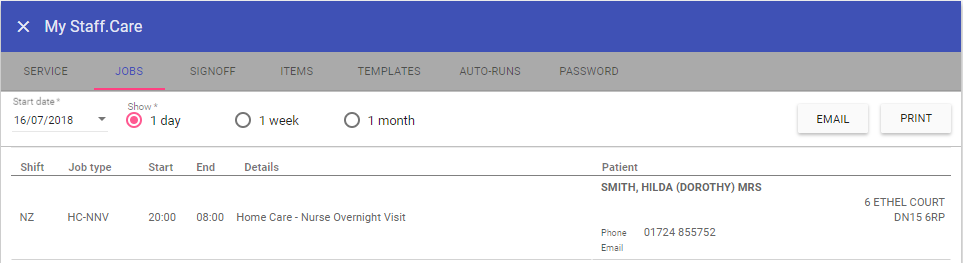 Start date: View jobs from this date onward.
Show
1 day: Allows a one day period to be viewed on screen.
1 week: Allows a one week period to be viewed on screen.
1 month: Allows a one month period to be viewed on screen.
Email: Emails the staff member the details of this job using the email saved in Staff Maintenance.
Print: Allows the details of the job to be saved as a .CSV file and then sent to the printer if desired.
Sign off
The Signoff Tab allows staff members to electronically signoff their Timesheets to say that they agree with the Rota that has been worked or disagree (Reject) the Rota that has been worked.Note: Before Staff can signoff shifts within My Staff.Care the rota must have been closed by the Rota Manager.
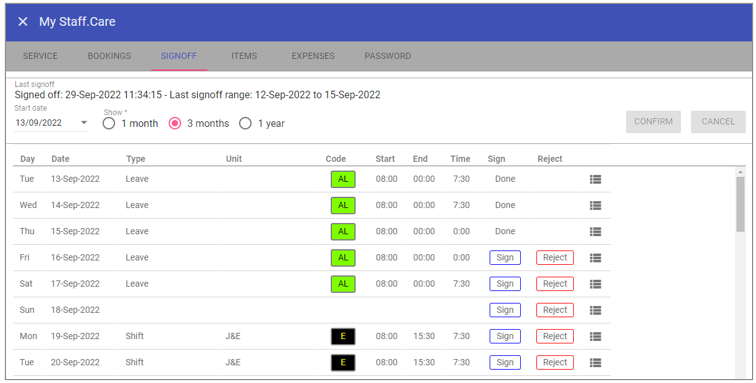 Last signoff: The date up to the last shifts that were signed off as actuals and ready for payroll.
 Start date: The date to show shifts and their sign off status.
Show
1 month: Displays 1 months' shift/leave transactions.
3 months: Displays 3 months' shift/leave transactions.
1 year: Displays 1 years' shift/leave transactions.
Confirm: Saves changes to sign off status.
Cancel: Cancels the current action of signing off.
View Rota: Takes you to the current rota.
Sign off: Agrees that the rota actuals are correct.
Reject: Does not agree that the rota actual are correct.
Items - Documents
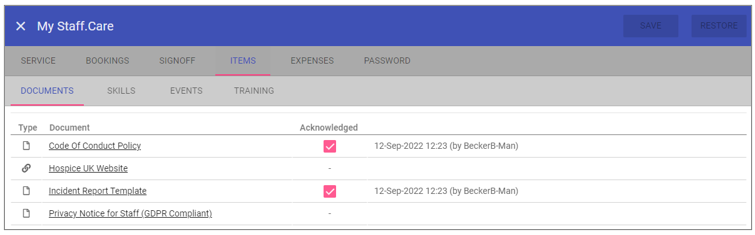 File: Allows you to view the file stored in Staff.Care.
 Link: A saved URL for the page you want to be directed to.
Items - Skills
This screen allows you to view staff Skills that are created in Staff Maintenance > Skills. It is a viewer only however the the ability to Acknowledge skills is possible via this screen.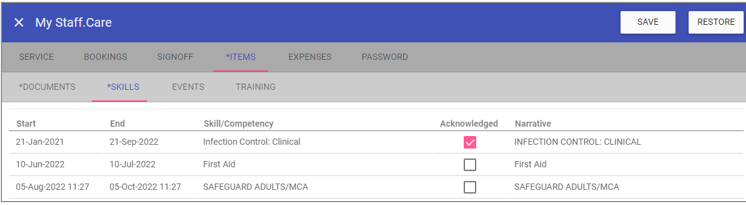 Actual start time: The start date/time of the Skill.
 Actual end time: The date/time the Skill expires.
Skill/Competency: The actual Skill/Competency added in Staff Maintenance.
Acknowledged: Once checked and saved the Skill will no longer display upon login.
Narrative: Description of the Skill.
Items - Events
This screen allows you to view staff Events that are created in Staff Maintenance > Events. It is a viewer only however the the ability to Acknowledge events is possible via this screen.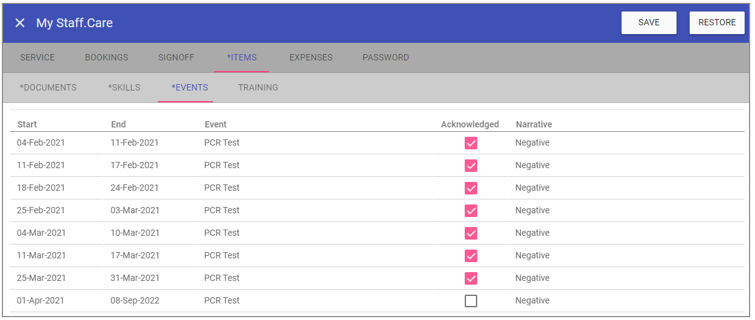 Actual start time: The start date/time of the Event.
 Actual end time: The date/time the Event expires.
Event: The actual Event added in Staff Maintenance.
Acknowledged: Once checked and saved the Event will no longer display upon login.
Narrative: Description of the Event.
Items - Training
This screen allows you to view staff Trainings that are created in Staff Maintenance > Training. It is a viewer only however the the ability to Acknowledge Training is possible via this screen.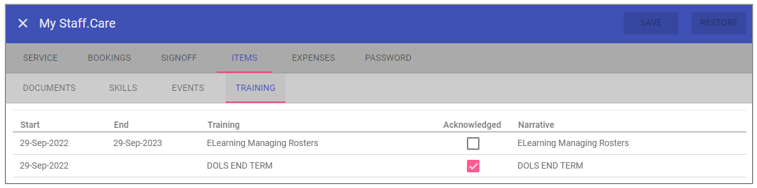 Actual start time: The start date/time of the Training.
 Actual end time: The date/time the Training expires.
Training: The actual Training added in Staff Maintenance.
Acknowledged: Once checked and saved the Training will no longer display upon login.
Narrative: Description of the Training.
Items - Extras
This screen allows you to view staff Extras that are created in Staff Maintenance > Extra. It is a viewer only however the the ability to Acknowledge Extras is possible via this screen.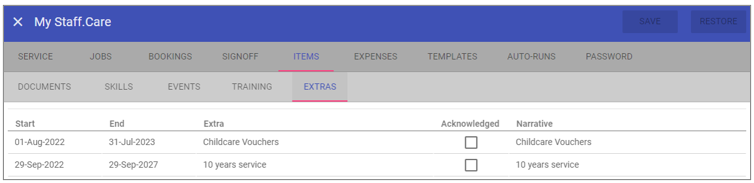 Actual start time: The start date/time of the Extra.
 Actual end time: The date/time the Extra expires.
Extra: The actual Extra added in Staff Maintenance.
Acknowledged: Once checked and saved the Extra will no longer display upon login.
Narrative: Description of the Extra.
Expenses
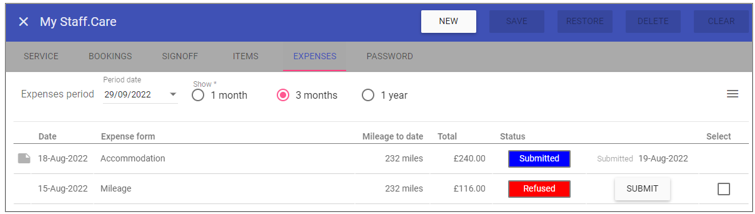 Expenses period date: The start date to show expenses.
 Show
1 month: Allows a one month period to be viewed on screen.
3 months: Allows a three month period to be viewed on screen.
1 year: Allows a one year period to be viewed on screen.
Date: Date of the expenses.
Expenses form: Form details what type of expenses.
Mileage to date: A running total of all mileage.
Total: The cost of the expense.
Status: The expense status.
Submit: Clicking submit allows a manager to approve expenses for payment.
Templates
Displays all report templates created by or assigned to the staff member.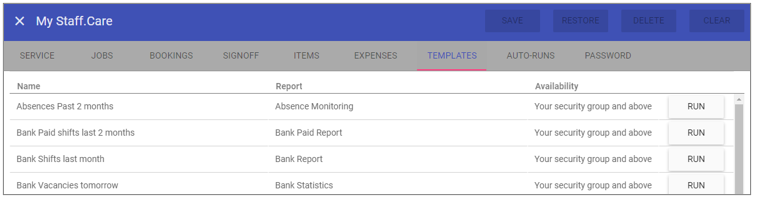 Name: The name of the report template specified by the user at the time of creation.
 Report: The Staff.Care sub-menu name of the report type.
Availability: Details the security settings of the report.
Run: Outputs the report.
Auto-runs
Displays all automatic report templates created by or assigned to the staff member.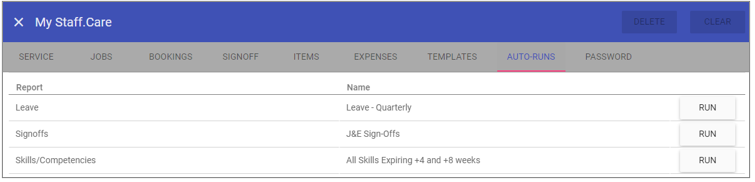 Report: The Staff.Care sub-menu name of the report type.
Name: The name of the report template specified by the user at the time of creation.
Run: Outputs the report.
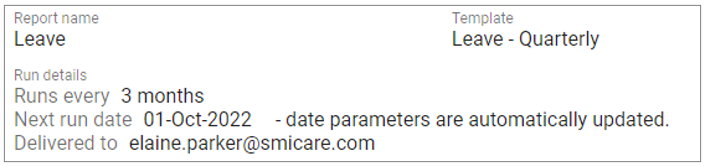
Clicking on the report reveals the details of the automatic generation and email parameters of the report.
Password
Allows the staff member to change their logon password, if the security level allows. Access name: The logged in staff members user name.
Existing: The current password in use.
Password: The new password to change the current password to.
Confirm: Repeat the new password from the password field.